How to publish a Flutter app to Google Play with GitHub Actions
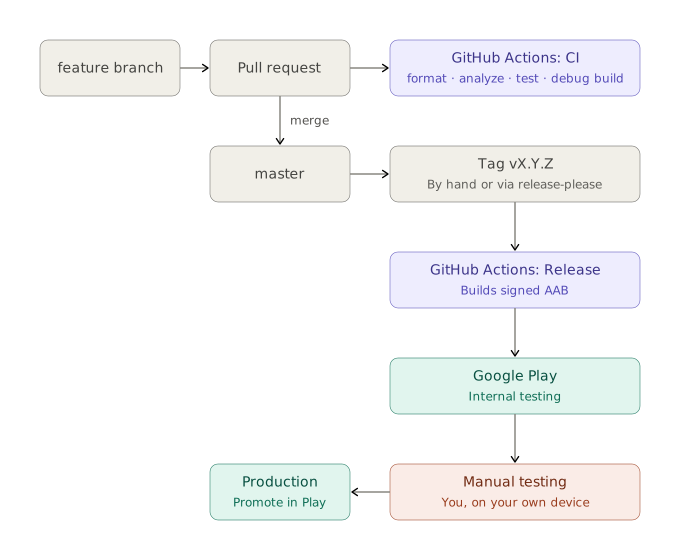
Your Flutter app is ready and you want it in the Google Play Store, preferably without building and uploading a bundle by hand for every update. In this guide you set up the app in the Play Console and build a pipeline in GitHub Actions that builds a signed app bundle (AAB) for every release and uploads it to the Internal testing track. You then promote it to production yourself in the Play Console.
I wrote these steps down while publishing a real app (October 2026), including the pitfalls I
actually ran into. Replace the example values (My App, com.yourdomain.my_app, src/my_app, …)
with the ones from your own project.
Lees dit artikel in het Nederlands: Flutter-app publiceren in Google Play met GitHub Actions.
Need an iOS version too? Read How to publish a Flutter app to TestFlight without a Mac.
Legend: 💶 = costs money · ⏳ = waiting time · ⚠️ = pitfall we actually ran into
Contents
- Overview and requirements
- Decisions up front
- Google Play developer account
- Preparing the Flutter project
- Upload keystore and signing
- Creating the app and the first upload (by hand)
- Filling in app content and the store listing
- Service account for uploads from CI
- GitHub secrets
- CI on every pull request
- Release workflow: build and upload to Play
- Optional: automatic versions with release-please
- Testers and going to production
- Troubleshooting
- Quick checklist
0. Overview and requirements
| What | Why | Cost |
|---|---|---|
| Google account | Owner of the developer account | free |
| Google Play Console account | Publishing apps | 💶 $25 one-time |
| GitHub repo with the Flutter project | Source code + GitHub Actions | free (public repo or within the free minutes) |
| Android device | Testing through the test track | — |
| JDK 17+ and Android SDK | Building locally (included in Android Studio) | free |
| Public privacy policy URL | Required in the Play Console (certainly with ads) | — |
1. Decisions up front
| Decision | Example | Note |
|---|---|---|
| Application ID | com.yourdomain.my_app |
⚠️ Can never be changed after the first upload. Underscores are allowed on Android (not on iOS: consider a form without _ if you want both platforms to match). |
| App name (Play Store) | My App |
Max. 30 characters. |
| Account type | Personal | Organization requires a D-U-N-S number. |
| Production access | — | ⚠️ New personal accounts first have to run a closed test with at least 12 testers for 14 days before they can go to production. See step 12.3. |
| Release track for CI | internal |
Fastest (no review), max. 100 testers. |
2. Google Play developer account
- Go to https://play.google.com/console/signup and sign in with the Google account that will be the owner.
- Choose personal or organization and pay 💶 $25.
- ⏳ Identity verification (ID card, address, phone number). Can take a few days.
- Turn on two-step verification for the Google account.
3. Preparing the Flutter project
3.1 Application ID and namespace
In android/app/build.gradle.kts:
android {
    namespace = "com.yourdomain.my_app"
    compileSdk = 36
    defaultConfig {
        applicationId = "com.yourdomain.my_app"
        minSdk = flutter.minSdkVersion
        targetSdk = 36                    // at least what Google Play requires at the time
        versionCode = flutter.versionCode // = build number from pubspec.yaml
        versionName = flutter.versionName // = version from pubspec.yaml
    }
}- Also move
MainActivity.ktto the folder that matches the new package (android/app/src/main/kotlin/com/yourdomain/my_app/) and update thepackageline. - ⚠️ Target API level: Google raises the minimum
targetSdkfor new apps and updates every year. Check the current requirement at Target API level requirements.
3.2 Version and build number
In pubspec.yaml:
version: 1.0.0+1 # versionName 1.0.0, versionCode 1⚠️ Google Play rejects every upload with a versionCode that has already been used. Increase the
number after the + for every upload.
3.3 App name and icons
-
Name below the icon:
android:label="My App"inandroid/app/src/main/AndroidManifest.xml. -
Icons: flutter_launcher_icons with a 1024×1024 PNG:
# flutter_launcher_icons.yaml
flutter_launcher_icons:
  android: true
  ios: false
  image_path: "assets/icon/app_icon.png"
  adaptive_icon_background: "#FFFFFF"
  adaptive_icon_foreground: "assets/icon/app_icon_foreground.png"
flutter pub add --dev flutter_launcher_icons dart run flutter_launcher_icons -
Store icon for the listing: 512×512 PNG (uploaded separately in step 6).
3.4 Ads (AdMob only)
-
AdMob → Apps → Add app → Android. If the app isn't on Google Play yet, choose No for "is the app listed on a supported app store?".
-
Note the app ID (
ca-app-pub-…~…) and create a banner ad unit (ca-app-pub-…/…). -
In
AndroidManifest.xml, inside<application>:<meta-data android:name="com.google.android.gms.ads.APPLICATION_ID" android:value="ca-app-pub-XXXXXXXXXXXXXXXX~XXXXXXXXXX"/> -
Always use Google's test banner in debug and profile builds (
ca-app-pub-3940256099942544/6300978111), and real IDs only whenkReleaseModeis true. ⚠️ Your own impressions or clicks on real IDs can get your AdMob account suspended. -
GDPR: Google requires a certified consent management platform in the EEA/UK/CH. Use the UMP SDK (included in
google_mobile_ads), only start Mobile Ads oncecanRequestAds()is true, and create a GDPR message in AdMob → Privacy & messaging. Without that message UMP shows nothing. -
Put an
app-ads.txton the website you list as your developer website in Play.
3.5 Inside the app
- Link to the privacy policy (e.g. on the "About" screen).
- With ads and UMP: a "Privacy Settings" option in the settings
(
ConsentForm.showPrivacyOptionsForm), only shown whengetPrivacyOptionsRequirementStatus()is required.
3.6 Checking
dart format --set-exit-if-changed lib test
flutter analyze
flutter test
flutter build apk --debug
4. Upload keystore and signing
Google Play uses Play App Signing: Google keeps the real app signing key; you sign uploads with your own upload key. If you lose the upload key, Google can reset it (⏳ through support). Not losing it is a lot easier.
4.1 Creating the keystore
On Windows with Android Studio's JDK (the path may differ):
& "C:\Program Files\Android\Android Studio\jbr\bin\keytool.exe" -genkey -v `
  -keystore "$env:USERPROFILE\upload-keystore.jks" `
  -storetype JKS -keyalg RSA -keysize 2048 -validity 10000 -alias upload
On macOS/Linux:
keytool -genkey -v -keystore ~/upload-keystore.jks -storetype JKS \
-keyalg RSA -keysize 2048 -validity 10000 -alias upload- Choose a strong password for the keystore and for the key.
- ⚠️ Backup: the
.jksfile + both passwords + the alias in your password manager. - ⚠️ Keep the keystore outside the repo and never commit it.
4.2 android/key.properties (local only)
storePassword=<keystore-password>
keyPassword=<key-password>
keyAlias=upload
storeFile=C:\\Users\\<you>\\upload-keystore.jks
Add to android/.gitignore (usually already there in new Flutter projects):
key.properties
**/*.jks
**/*.keystore
4.3 Signing in android/app/build.gradle.kts
Reads the values from key.properties or from environment variables (for CI). Without a key the
build falls back to the debug key, so CI on pull requests also works without secrets. Google Play
rejects such a build, so you can never publish it by accident.
import java.io.FileInputStream
import java.util.Properties

val keystoreProperties = Properties()
val keystorePropertiesFile = rootProject.file("key.properties")
if (keystorePropertiesFile.exists()) {
    keystoreProperties.load(FileInputStream(keystorePropertiesFile))
}

// Locally from key.properties; in CI from environment variables.
fun signingValue(propertyKey: String, envKey: String): String? =
    keystoreProperties.getProperty(propertyKey) ?: System.getenv(envKey)

val releaseStoreFile = signingValue("storeFile", "ANDROID_KEYSTORE_PATH")
val hasReleaseSigning = releaseStoreFile != null

android {
    // … namespace, defaultConfig, …

    signingConfigs {
        if (hasReleaseSigning) {
            create("release") {
                keyAlias = signingValue("keyAlias", "ANDROID_KEY_ALIAS")
                keyPassword = signingValue("keyPassword", "ANDROID_KEY_PASSWORD")
                storeFile = file(releaseStoreFile!!)
                storePassword = signingValue("storePassword", "ANDROID_KEYSTORE_PASSWORD")
            }
        }
    }
    buildTypes {
        release {
            signingConfig = if (hasReleaseSigning) {
                signingConfigs.getByName("release")
            } else {
                logger.warn("No upload key found: release build is signed with the debug key.")
                signingConfigs.getByName("debug")
            }
        }
    }
}
4.4 Building a signed bundle locally
flutter build appbundle --releaseResult: build/app/outputs/bundle/release/app-release.aab.
5. Creating the app and the first upload (by hand)
⚠️ The Google Play API can't create a new app and can't upload the first bundle. Do this once by hand; after that CI takes over.
- Play Console → Create app.
- App name, default language, App (not a game), Free.
- Confirm the declarations → Create app.
- Testing → Internal testing → Create new release.
- Play App Signing: accept Use Google-generated key (the default).
- Upload
app-release.aabfrom step 4.4. - Fill in the release name and release notes → Next → Save and publish.
- Testers (tab under Internal testing): create an email list with at least yourself.
Then check under Test and release → App integrity that Play App Signing is active.
6. Filling in app content and the store listing
The app's dashboard shows which tasks are still open. Complete all of them; without this information you can't go to production (and for some test tracks you can't either).
Policy → App content:
| Section | What to fill in |
|---|---|
| Privacy policy | The public URL |
| App access | "All functionality is available without special access" (unless you have a login) |
| Ads | "Yes, my app contains ads" if you use AdMob |
| Content rating | Answer the (IARC) questionnaire honestly |
| Target audience | Age groups; ⚠️ if you choose children, strict rules for ads apply |
| Data safety | With AdMob: device or other IDs, app interactions, diagnostics; shared with Google for advertising; encrypted in transit |
| Advertising ID | "Yes", used for advertising (with AdMob) |
| Government apps, financial features, health, … | Usually "No" |
Grow → Store listing:
| Section | Requirements |
|---|---|
| App name | Max. 30 characters |
| Short description | Max. 80 characters |
| Full description | Max. 4000 characters |
| App icon | 512×512 PNG |
| Feature graphic | 1024×500 PNG/JPEG |
| Phone screenshots | Min. 2, e.g. 1080×1920 |
| Category, contact details | Email required, website optional |
7. Service account for uploads from CI
7.1 In Google Cloud
- Go to the Google Cloud Console → create a project
(e.g.
play-publisher) or pick an existing one. - APIs & Services → Library → search for Google Play Android Developer API → Enable.
- IAM & Admin → Service Accounts → Create service account:
name e.g.
github-play-upload→ Create and continue → no role needed → Done. - Open the service account → Keys → Add key → Create new key → JSON → the file is downloaded. ⚠️ This is a secret: put it in your password manager right away, never in git.
- Copy the service account's email address (
…@….iam.gserviceaccount.com).
7.2 In the Play Console
- Users and permissions → Invite new users → paste the service account's email address.
- App permissions → Add app → pick your app, with at least:
- Release to testing tracks
- Manage testing track releases (the exact wording differs per language and Console version)
- Invite user.
- ⏳ Permissions can take up to 24–36 hours before the API recognises them.
One service account can serve all your apps: for each new app, just add the app permissions.
8. GitHub secrets
GitHub → repo → Settings → Secrets and variables → Actions → New repository secret:
| Secret | Contents |
|---|---|
ANDROID_KEYSTORE_BASE64 |
The keystore, base64-encoded (see below) |
ANDROID_KEYSTORE_PASSWORD |
Keystore password |
ANDROID_KEY_ALIAS |
Alias, e.g. upload |
ANDROID_KEY_PASSWORD |
Key password |
PLAY_SERVICE_ACCOUNT_JSON |
Full contents of the JSON file from step 7.1 |
Keystore to base64, straight to the clipboard:
# Windows (PowerShell)
[Convert]::ToBase64String([IO.File]::ReadAllBytes("$env:USERPROFILE\upload-keystore.jks")) | Set-Clipboard
# macOS
base64 -i ~/upload-keystore.jks | pbcopy
# Linux
base64 -w 0 ~/upload-keystore.jks9. CI on every pull request
.github/workflows/ci.yml: checks every PR, without secrets (the release build falls back to the
debug key, see 4.3).
name: CI

on:
  pull_request:
    branches: [master]
  push:
    branches: [master]

concurrency:
  group: ci-${{ github.ref }}
  cancel-in-progress: true

permissions:
  contents: read

env:
  FLUTTER_VERSION: 3.47.3          # pin it: same version locally and in CI

defaults:
  run:
    working-directory: src/my_app     # leave out if the project is in the root

jobs:
  checks:
    name: Format, analyze and test
    runs-on: ubuntu-latest
    timeout-minutes: 15
    steps:
      - uses: actions/checkout@v7
      - uses: subosito/flutter-action@v2
        with:
          flutter-version: ${{ env.FLUTTER_VERSION }}
          channel: stable
          cache: true
      - run: flutter pub get
      - run: dart format --output=none --set-exit-if-changed lib test
      - run: flutter analyze
      - run: flutter test

  build-android:
    name: Build Android (debug)
    runs-on: ubuntu-latest
    needs: checks
    timeout-minutes: 30
    steps:
      - uses: actions/checkout@v7
      - uses: actions/setup-java@v6
        with:
          distribution: temurin
          java-version: 17
          cache: gradle
          cache-dependency-path: |
            src/my_app/android/*.gradle.kts
            src/my_app/android/gradle/wrapper/gradle-wrapper.properties
      - uses: subosito/flutter-action@v2
        with:
          flutter-version: ${{ env.FLUTTER_VERSION }}
          channel: stable
          cache: true
      - run: flutter pub get
      - run: flutter build apk --debug
Branch protection (recommended): GitHub → Settings → Branches → Add rule for master →
Require a pull request + Require status checks: "Format, analyze and test" and
"Build Android (debug)". You can only select those checks after they've run once.
10. Release workflow: build and upload to Play
.github/workflows/release.yml: runs when a v* tag is pushed (e.g. v1.0.1).
name: Release

on:
  push:
    tags: ["v*"]

permissions:
  contents: read

jobs:
  android:
    name: Android → Play internal testing
    runs-on: ubuntu-latest
    timeout-minutes: 45
    defaults:
      run:
        working-directory: src/my_app
    steps:
      - uses: actions/checkout@v7

      - uses: actions/setup-java@v6
        with:
          distribution: temurin
          java-version: 17
          cache: gradle
          cache-dependency-path: |
            src/my_app/android/*.gradle.kts
            src/my_app/android/gradle/wrapper/gradle-wrapper.properties

      - uses: subosito/flutter-action@v2
        with:
          flutter-version: 3.47.3
          channel: stable
          cache: true

      - run: flutter pub get

      - name: Restore upload keystore
        env:
          ANDROID_KEYSTORE_BASE64: ${{ secrets.ANDROID_KEYSTORE_BASE64 }}
        run: |
          if [ -z "$ANDROID_KEYSTORE_BASE64" ]; then
            echo "::error::Secret ANDROID_KEYSTORE_BASE64 is missing."
            exit 1
          fi
          echo "$ANDROID_KEYSTORE_BASE64" | base64 --decode > "$RUNNER_TEMP/upload-keystore.jks"
          echo "ANDROID_KEYSTORE_PATH=$RUNNER_TEMP/upload-keystore.jks" >> "$GITHUB_ENV"

      - name: Build signed app bundle
        env:
          ANDROID_KEYSTORE_PASSWORD: ${{ secrets.ANDROID_KEYSTORE_PASSWORD }}
          ANDROID_KEY_ALIAS: ${{ secrets.ANDROID_KEY_ALIAS }}
          ANDROID_KEY_PASSWORD: ${{ secrets.ANDROID_KEY_PASSWORD }}
        run: flutter build appbundle --release

      - name: Upload to Google Play (internal testing)
        uses: r0adkll/upload-google-play@v1
        with:
          serviceAccountJsonPlainText: ${{ secrets.PLAY_SERVICE_ACCOUNT_JSON }}
          packageName: com.yourdomain.my_app
          releaseFiles: src/my_app/build/app/outputs/bundle/release/app-release.aab
          mappingFile: src/my_app/build/app/outputs/mapping/release/mapping.txt
          track: internal
          status: completed
releaseName: ${{ github.ref_name }}mappingFilegives Play the R8 mapping, so crash reports are readable. If the file doesn't exist (R8 off), leave the line out.- Release notes ("What's new"): add
whatsNewDirectory: <folder>with awhatsnew-en-USfile (max. 500 characters) per language.
Making a release (without release-please):
# 1. bump the version in pubspec.yaml, e.g. 1.0.1+2, commit and merge
# 2. create and push the tag
git tag v1.0.1
git push origin v1.0.1
Follow the run in GitHub → Actions → Release. After about 10 minutes the build shows up in the Play Console under Internal testing.
11. Optional: automatic versions with release-please
release-please reads your commit messages
(Conventional Commits: feat:, fix:, …) and maintains a
release PR with the new version in pubspec.yaml (build number +1) and a CHANGELOG.md.
When you merge that PR, it creates a tag and a GitHub Release.
11.1 Configuration
release-please-config.json in the root:
{
  "$schema": "https://raw.githubusercontent.com/googleapis/release-please/main/schemas/config.json",
  "include-component-in-tag": false,
  "packages": {
    "src/my_app": {
      "release-type": "dart",
      "package-name": "my_app",
      "changelog-path": "CHANGELOG.md"
    }
  }
}
.release-please-manifest.json with the current version:
{ "src/my_app": "1.0.0" }If the project already has releases, add "bootstrap-sha": "<commit of the last release>";
otherwise release-please puts the entire history in the first changelog.
11.2 Workflow
⚠️ Tags that release-please creates with the default GITHUB_TOKEN don't start other
workflows. The tag trigger from step 10 then doesn't fire. Solution: build in the same
workflow, as a job that only runs when a release was created.
name: Release

on:
  push:
    branches: [master]

permissions:
  contents: write
  pull-requests: write

jobs:
  release-please:
    runs-on: ubuntu-latest
    outputs:
      release_created: ${{ steps.release.outputs['src/my_app--release_created'] }}
      tag_name: ${{ steps.release.outputs['src/my_app--tag_name'] }}
      version: ${{ steps.release.outputs['src/my_app--version'] }}
    steps:
      - uses: googleapis/release-please-action@v5
        id: release
        with:
          config-file: release-please-config.json
          manifest-file: .release-please-manifest.json

  android:
    needs: release-please
    if: needs.release-please.outputs.release_created == 'true'
    # … the same steps as in step 10, with:
    #     releaseName: ${{ needs.release-please.outputs.version }}
If the project lives in a subfolder, the outputs are called <path>--release_created and so on. If
it's in the root, simply release_created, tag_name and version.
11.3 GitHub settings
- Settings → Actions → General → turn on Allow GitHub Actions to create and approve pull requests.
- Settings → General → Pull Requests: only squash merging, with Default to PR title on. The
PR title then becomes the commit on
master, so it has to follow Conventional Commits. Enforce that with action-semantic-pull-request. - ⚠️ No CI checks run on a release PR (same
GITHUB_TOKENlimitation). With branch protection, required checks then stay on Expected — Waiting for status. Choose one:- merge as an admin with "Merge without waiting for requirements to be met (bypass branch protections)"; for that, leave Do not allow bypassing the above settings off, or
- use a fine-grained personal access token or GitHub App as
token:for release-please (checks do run then, but you have to renew the token).
12. Testers and going to production
12.1 Internal testing (max. 100 testers, no review)
- Testing → Internal testing → Testers → email list with the testers' Google accounts.
- Copy the join link and send it to the testers.
- The tester opens the link on the device → Become a tester → installs through the Play Store. (The first time it can take a few minutes before the app shows up.)
12.2 Closed and open testing
- Closed testing: larger groups (email lists or Google Groups), reviewed by Google.
- Open testing: anyone can join through the Play Store page.
- To move a release to another track: open the release in Internal testing → Promote release.
12.3 New personal accounts: closed test required
⚠️ Personal developer accounts created after November 2023 only get production access after a closed test with at least 12 testers who stay opted in for 14 days in a row. After that you apply for production access from the dashboard (with a short questionnaire). Details: Testing requirements for new personal developer accounts.
12.4 Going to production
- Testing → Internal testing → release → Promote release → Production.
- Choose countries (Production → Countries/regions) and optionally a staged rollout (e.g. 20%).
- Send for review → ⏳ review by Google (hours to a few days).
- After the release, check Android vitals and the pre-launch report for crashes.
13. Troubleshooting
| Message / symptom | Cause | Fix |
|---|---|---|
| Upload via API: Package not found | App doesn't exist yet or never had an upload | Step 5: create the app and upload the first bundle by hand |
| The caller does not have permission | Service account lacks app permissions, or they aren't active yet | Check step 7.2; ⏳ wait up to 36 hours |
| Version code X has already been used | Build number not increased | pubspec.yaml: increase the number after + |
| You uploaded an APK or Android App Bundle that was signed in debug mode | No upload key found during the build | Check the secrets (step 8) or key.properties |
| signed with the wrong key | Different keystore than for the first upload | Use the right keystore; lost it → reset the upload key in the Play Console (App integrity) |
| Release workflow doesn't start after a release-please tag | Tags via GITHUB_TOKEN don't trigger workflows |
Build in the same workflow (step 11.2) |
| Release PR stays blocked by branch protection | No checks on PRs from GITHUB_TOKEN |
Bypass as an admin or use a PAT/GitHub App (step 11.3) |
| Workflow fails: secret missing | Secret not created before the first release | Create the secret → Actions → run → Re-run failed jobs |
| Play: targetSdkVersion too low | Google's new yearly requirement | Increase targetSdk (step 3.1) |
| Play: support for 16 KB page sizes missing | Old NDK/AGP or native libraries | Recent Flutter, AGP and NDK; check in App bundle explorer |
Windows: flutter build asks for symlink support |
Developer Mode off | start ms-settings:developers → turn on Developer Mode |
| Kotlin compilation fails with different roots | Project and Pub cache on different drives (e.g. D: and C:) | kotlin.incremental=false in android/gradle.properties |
| Gradle: Unsupported class file major version | JDK too new or too old for the Gradle version | Update Gradle/AGP or use Android Studio's JDK |
| No ads in the EU | No GDPR message in AdMob or no UMP consent | Step 3.4, item 5 |
14. Quick checklist
Once per account (skip for your next app):
- [ ] Google Play Console account 💶, identity verified ⏳
- [ ] Google Cloud project with the Google Play Android Developer API
- [ ] Service account + JSON key stored safely
- [ ] (AdMob) account and
app-ads.txton your website
Per app:
- [ ] Application ID, name, privacy policy URL chosen
- [ ]
build.gradle.kts: namespace, applicationId, targetSdk, signing viakey.propertiesor env - [ ] Icons, app name, privacy link in the app
- [ ] (AdMob) app ID in the manifest, test IDs in debug, UMP consent, GDPR message
- [ ] Upload keystore created + backup
- [ ] App created in the Play Console + first AAB uploaded by hand to Internal testing
- [ ] App content and store listing filled in
- [ ] Service account invited with app permissions
- [ ] GitHub secrets (5 of them)
- [ ]
ci.yml+ branch protection - [ ]
release.yml(tag trigger or release-please) - [ ] First automatic release shows up in Internal testing
- [ ] Testers invited, tested, promoted to production
Questions, or did you get stuck somewhere else? Let me know and I'll add it to this guide.